Connecting a website form to a business system can eliminate repeated copying, but only when the form collects useful information and creates the right internal record.
A form should make the customer’s first step easier while giving staff enough context to review, route, and continue the request.
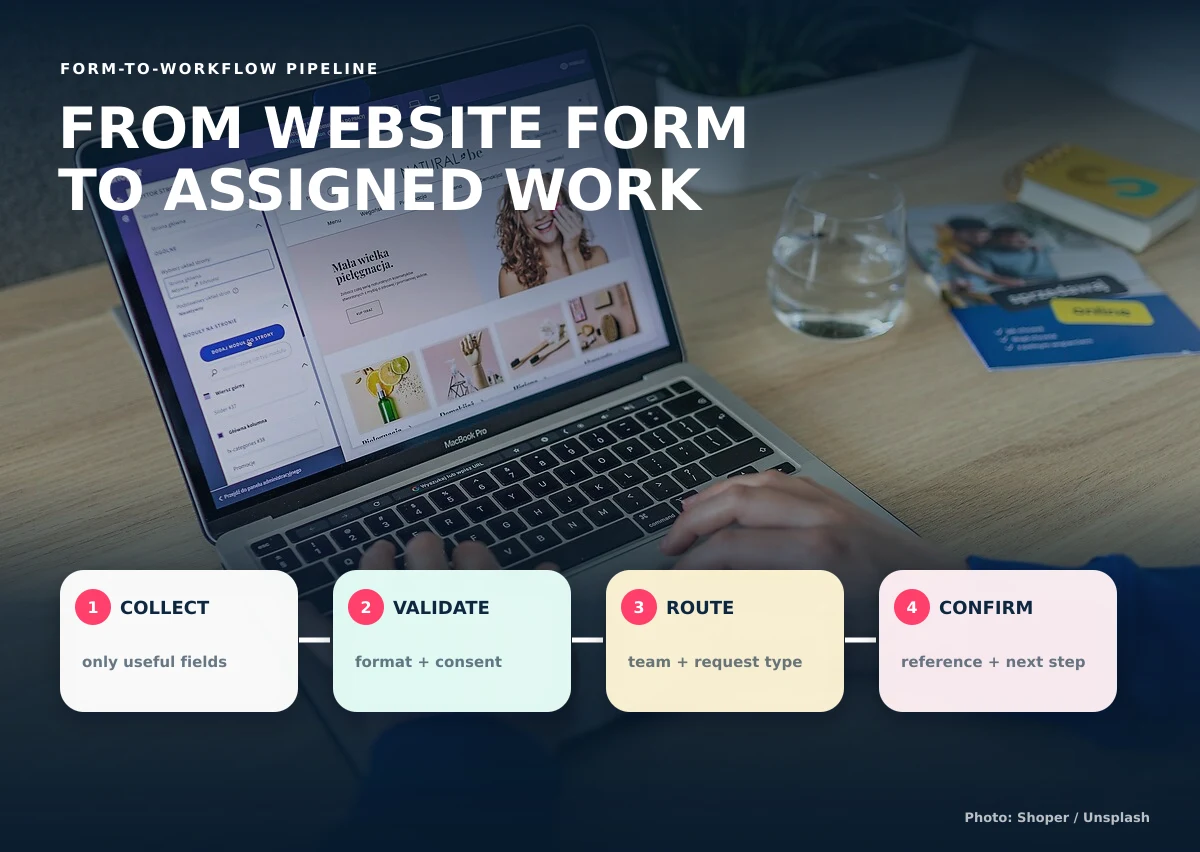
Collect identity and contact information carefully
Ask only for the contact details needed to provide the service. Explain why the information is requested and avoid collecting sensitive data simply because the form makes it possible.
Use a request type to control the next questions
A clear service, inquiry, order, booking, or request type helps the system display relevant fields and route the submission correctly. Conditional questions keep the form shorter for everyone else.
Ask for operational requirements
Relevant requirements may include location, schedule, quantity, budget range, fulfillment method, property, destination, existing account, or document type. Use specific fields when staff need to sort or report the answers.
Validate before creating the record
Check required fields, accepted file types, date logic, quantity limits, contact format, and consent statements before submission. Server-side validation remains necessary even when the browser provides instant feedback.
Route and assign the submission
Use request type, location, service, availability, or account relationship to place the new record in the correct queue. If automatic assignment is not appropriate, create a visible unassigned queue for staff review.
Confirm what happens next
Give the customer a reference, expected next step, contact method, and any appropriate timing information. Do not promise immediate approval when the submission still requires review.
Protect personal information throughout the process
The form, database, notifications, files, user access, retention, and exports all affect privacy. Philippine businesses should understand the Data Privacy Act of 2012 and obtain appropriate professional guidance for their processing activities.
Useful form-to-system outputs
- A new record with a unique reference
- Structured fields for filtering and reporting
- An assigned team or review queue
- A customer confirmation
- A next-action date or service target
- A status and activity history
- Attachments connected to the correct record
Decide what should happen when a submission is incomplete, suspicious, duplicated, or outside the service area. It may enter a review queue instead of being rejected automatically. If the same customer sends the form twice, staff should be able to compare likely duplicates before creating two independent jobs. File uploads should have documented type and size limits, checks appropriate to the risk, restricted access, and a retention rule.
After launch, compare form submissions with the records that staff can actually use. Track missing information, invalid contact details, routing corrections, abandoned forms, response time, and conversion to the next meaningful stage. If customers repeatedly choose the wrong request type or staff always ask the same follow-up question, improve the field label, guidance, or conditional logic. The goal is not to collect the most data; it is to collect enough accurate information to begin the right work.
Causing Designs connects professional websites with private dashboards and workflow tools when a simple inbox is no longer enough.
To connect a website form to a business system, show us what customers submit and what staff do next.